
Key facts
- No graphics or performance modes: every console targets 30fps
- PS5 Pro adds ray-traced shadows and PSSR upscaling automatically, with no extra toggles
- Camera shake can be switched off and the crash and kill cinematic cameras turned down
- Difficulty can't be changed, but there are assists for combat, vehicle damage and minigames
- A Mute Licensed Music option is there for streamers
As of 21 November 2026, GTA 6 has no graphics or performance modes on any console: PS5, PS5 Pro and Xbox Series X|S all target 30fps, so the settings that make the biggest difference are your TV’s Game Mode, HDR calibration, camera shake, the cinematic cameras and aim assist. Here’s what to change first, in the order we’d do it.
Graphics: what you can and can’t change
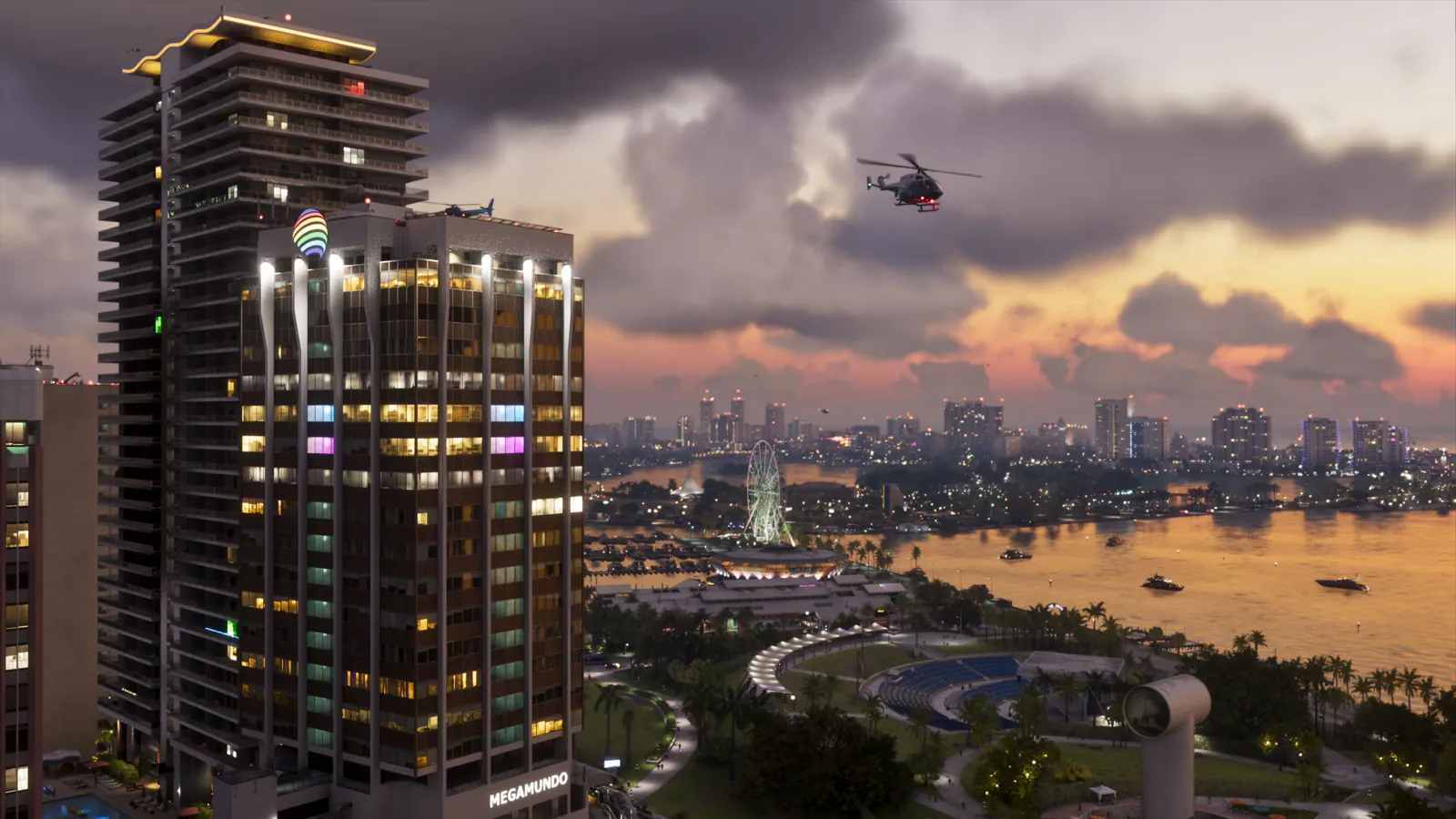
There’s no Quality, Performance or Balanced mode, and no resolution or frame rate option in the game. Rockstar targets 30fps on every console, and says even the PS5 Pro’s processor can’t run the game’s simulation faster. More on that in our PS5 Pro guide.
| Console | Frame rate | What you get |
|---|---|---|
| PS5 | 30fps | Ray-traced reflections and global illumination |
| PS5 Pro | 30fps | The same, plus ray-traced shadows and PSSR upscaling (on automatically) |
| Xbox Series X | 30fps | Ray-traced reflections and global illumination |
| Xbox Series S | 30fps | Ray-traced reflections and global illumination |
The in-game Display tab is mostly about how the picture looks to you: HDR calibration, safe zone (screen borders), motion blur strength and effect intensity. Turning motion blur down is the one change most guides agree makes the 30fps image look sharper in motion. For a side-by-side of the two consoles, see PS5 vs Xbox.
Console and TV settings
Get these right before you touch the game’s own menus.
| Setting | PS5 | Xbox |
|---|---|---|
| Where | Settings > Screen and Video | Settings > General > TV and Display Options |
| Resolution | Automatic | 4K UHD if your TV supports it |
| HDR | On When Supported | Allow HDR10 |
| HDR calibration | Adjust HDR | Calibrate HDR for Games |
| Low-latency mode | ALLM Automatic | Allow Auto Low Latency Mode |
| VRR and 120Hz | Fine to leave on; they don’t raise GTA 6 above 30fps | Same |
On the TV itself:
- Use Game Mode. It cuts input lag, which matters more at 30fps.
- Turn off motion smoothing (TruMotion, MotionFlow, Motion Plus and similar). It adds lag and smears fast movement.
- Turn on HGiG if your TV has it, then run the console’s HDR calibration, and only then the in-game HDR Calibration. Doing it in that order stops the game’s brightness settings fighting your TV’s.
Camera and comfort
- Camera shake: off. It’s in the Camera tab and makes driving and gunfights much easier to read.
- Cinematic crash and kill cameras: down or off. The slow-motion cutaways after crashes and kill shots can be turned right down, or up for more drama.
- Hit effects: lower if the flashes and screen distortion when you’re shot bother you.
- Blood and gore has three levels, and dismemberment has its own toggle.
Movement speed: walk faster
Tired of Jason and Lucia strolling? Go to Settings > Gameplay and scroll down to Movement. Movement Speed sets how fast you go with the stick pushed all the way: Walk (the default), Fast Walk, Jog or Run. Jog is a good middle ground. It doesn’t change sprint speed or stamina, and you can still walk slowly by tilting the stick less. A separate Combat Movement Speed (Fast Walk, Jog or Run) does the same when you’re in a fight.
There’s no full first-person option in the menus. See our first-person guide for the button holds that give you a first-person view.
Aiming and combat
- Targeting has three modes: Lock-On, Partial (the default) and Free Aim. Partial is a good middle ground for most players. Lock-On adds a lock-on time slider and a target-switch toggle.
- Aim Assist Strength is a slider that sets how quickly your aim tracks a target. Start in the middle and raise it if you keep losing targets.
- Drive-by assist and quick draw can be toggled, and there’s a projectile arc that shows where a thrown grenade will land.
- Accessible Combat (Gameplay tab) lowers enemy health and the damage you take. There’s no difficulty setting, so this, the reduced vehicle damage option and simpler minigames are the only ways to make things easier.
For button layouts, the three control schemes (Default, Classic and Left-Handed) are under Controls, and our controller guide covers the rest.
HUD, audio and subtitles
- Minimap (Navigation Experience): the game asks you to pick one in the opening minutes. Minimap (Dynamic) shows the minimap only when it’s useful (tap down on the D-pad to bring it up), Minimap and Compass (Dynamic) adds a compass strip that shows mission markers, your waypoint and nearby points of interest, and Always On keeps the minimap up the whole time. We’d pick a Dynamic option: the minimap is big and gets in the way of cutscenes. You can change it later in the settings, along with map and minimap icon size; GPS voice directions are off by default.
- Subtitles default to missions only. Switch them on for everything if you want to catch ambient chatter and phone calls, and resize them or add a background if they’re hard to read.
- Audio: raise Dialogue Volume if the music drowns out speech. Mute Licensed Music lets streamers avoid copyright claims. On PS5, 3D Audio works with headphones; on Xbox, pick Windows Sonic or Dolby Atmos in the console’s audio settings.
Quick answers
Does GTA 6 have a performance mode?
No. As of 21 November 2026, there’s no performance or 60fps mode on any console, and Rockstar hasn’t announced one.
What are the best HDR settings for GTA 6?
Run your console’s HDR calibration first (Adjust HDR on PS5, Calibrate HDR for Games on Xbox) with HGiG on if your TV has it, then the in-game HDR Calibration. Use your TV’s Game Mode and turn off motion smoothing.
How do you turn off camera shake in GTA 6?
Open Settings, go to the Camera tab and switch Camera Shake off. The crash and kill cinematic cameras are in the same area and can be turned down.
Can you change the difficulty in GTA 6?
No. There’s no difficulty setting, but Accessible Combat lowers enemy health and damage, and you can also reduce vehicle damage and simplify minigames.
Should I turn on VRR and 120Hz for GTA 6?
It doesn’t hurt, but it won’t make GTA 6 run faster than 30fps. Leave them on for other games.
Does the PS5 Pro have extra settings in GTA 6?
No. Ray-traced shadows and PSSR upscaling are on automatically, with no extra toggles.
How do you walk faster in GTA 6?
Settings > Gameplay > Movement, then set Movement Speed to Fast Walk, Jog or Run instead of the default Walk. It doesn’t affect sprinting.
Which Navigation Experience should I pick in GTA 6?
Minimap (Dynamic) or Minimap and Compass (Dynamic) for most players: the minimap shows up when you need it and stays out of cutscenes. Choose Always On if you like seeing it all the time. You can switch later in the settings.
Sources9
- Rockstar Newswire: pre-load Grand Theft Auto VI now (30fps target, PS5 Pro features)
- GamesRadar+: Rockstar says GTA 6 at 60fps on PS5 Pro isn’t possible
- BGR: in-game settings to change before you play GTA 6
- KeenGamer: best GTA 6 settings to change first
- Beebom: best PS5 settings for GTA 6
- TechWiser: GTA 6 best settings for PS5, Xbox and TV
- PC Gamer: GTA 6 movement speed setting
- VGC: GTA 6 Navigation Experience explained
- Dork: which GTA VI navigation experience should you pick?
Every fact is checked against Rockstar, Take-Two, the platform holders or named major outlets. Leaks and insider claims are labelled Rumour. How we verify